

How To: Map Network Skydrive Folder on Windows & Surface RT
With the brand new Surface RT with Microsoft Windows RT installed, there are some limitations that are in place as to what it can or can’t do. While the Windows 8 Pro version can do anything you’d do on a desktop (since it’s the same OS), as I stated before in my comparison of Windows RT and Pro compatibility, RT can’t run programs in desktop mode except Microsoft Office 2013, Paint, Calculator, and the File Browser, and a few others. One of the things not included is having a Microsoft SkyDrive folder/drive in your file browser.
Where Is My Skydrive Folder?
Though you can access Microsoft SkyDrive either through the official Windows 8 app on both Windows RT and Windows 8 Pro, and through SkyDrive’s web page, only Windows 8 Pro (Surface Pro) will be able to use the Legacy Program for SkyDrive to map the network folder/drive in to the file browser and constantly sync between them. I can see the reason for Microsoft excluding this because if you had a 100gb SkyDrive account, the Surface RT and Asus Vivo tablets would easily fill up and run out of storage trying to sync.
Benefits to a Mapped SkyDrive Drive
The most immediate reason you’ll want to do this is to be able to access your SkyDrive files without going back and forth between the apps to share something, or better yet, need to upload a photo, music file, video, or document that’s stored in the cloud to Craigslist or something else through your web browser? This will provide a way to virtually expand your Surface RT or Windows RT devices limited storage with little to no-cost or upgrade. Though the best reason to do this is that you can sync your SkyDrive music, videos, and pictures to your Windows RT media library.
Mapping SkyDrive Folder onto Windows RT
- You’ll need to log into your SkyDrive account on your web browser: http://skydrive.com
- Then either right click the “Files” link and then select Copy Link OR you can just copy everything after the #CID=
(Example: https://skydrive.live.com/#cid=XXXXXXXXXXXXXXX)
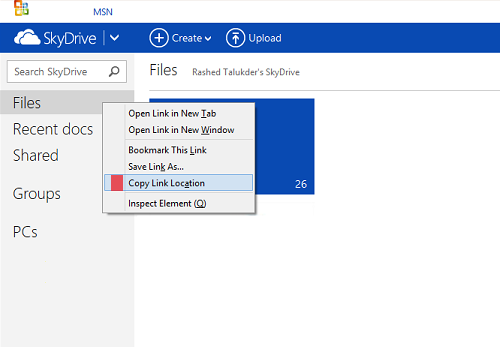
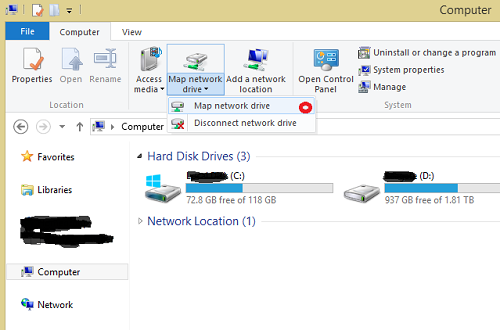
- Open up the Windows File Browser on your Windows RT tablet, click on “Computer”, and then on the top Menu, click computer, then “Map Network Drive”
- Either right click and paste the link we copied earlier and delete everything except for the stuff after the #cid=
OR, you can just start typing in https://d.docs.live.net/Then put in the CID number so it looks like:
https://d.docs.live.net/XXXXXXXXXXXXXXXXXX/
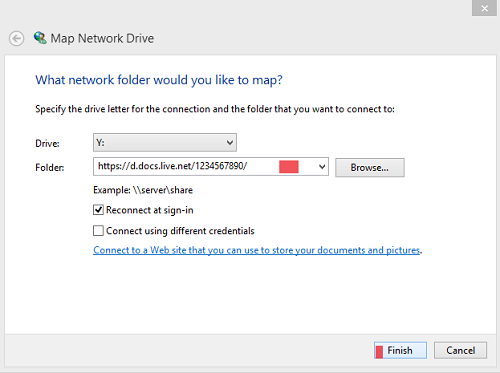
- Hit finish. Then click on the drive with all the weird letters and numbers, then login with your SkyDrive account information.
Username = SkyDrive login e-mail
Password is the same as your SkyDrive Password
Now you’re done and you can view and access your SkyDrive account as a mapped network drive on any Windows RT device! No more limited functions of the Windows Store App as long as you have a internet connection on your Microsoft Surface RT or Windows RT device!
Tip: You can also right click on the your mapped SkyDrive account on your Windows RT device and then select rename, and now you can have a nice short name to look at.
Great, thanks for the tip !
Welcome. Thanks for visiting!
I can now share with myself my notepad notes… (all that for that). Thank you so much!
You’re welcome Chloe. Glad I could help you get such a big task done for you! Please do come back and share on your social networks. Thank you.
Let me ask… is it possible to choose an option like “Make available Off-line” in Windows RT-Explorer (“traditional” Windows would allow it)?
If yes… we have a local replica of SkyDrive and we can synchronize files during logoff/logon (which is at least a good starting point). I only use 7 GB which is enough for me (and just in case I can set the local replication for single folders only)
Giovanni, there is no option to make things available offline. It would be nice, but I think they did it as a way to prevent people from filling up the limited space available.
I’d love to be able to do this – and I appreciate you posting the solution – but when I try on my Surface, I get an error 0x80070043 “The network name cannot be found” …
Any idea why that would be? It does appear to be looking for the (Skydrive) address, but then error pops up.
Hi Lewis,
Thank you for coming to my blog. For the error, did you remember to put the last “/” after your SkyDrive ID?
If that doesn’t work, can you ping your skydrive address at least? If not, post back and I’ll try to help.
Rashed – excellent, I love simple solutions! It was indeed the missing last “/” … Worked like a charm. This is a very helpful fix, and again much appreciation. Thanks – lewis
Awesome. Glad the simplest fix worked for you Lewis. Please do help me grow by sharing my page on social sites and follow me on G+ or twitter.
Pure Genius. Thank you!
Many thanks – worked well
Without local, synchronized documents, Windows RT is not a viable solution for me. The device would be a perfect laptop replacement, but only if I can access my skydrive content while I’m unconnected – airplane, international travel, etc.. As long as I have the ability to selectively choose the folders to synch, I can manage the ‘space’ issue. Hopefully selective synch is added in a future update – otherwise, this thing is a boat anchor.
I agree with you in many ways Bill. The SkyDrive app is pretty close to useless on it’s own and has to constantly go to the web interface to do something as simple as deleting a file.
I want to have offline access to and I sadly don’t think it’s coming. Could be one of the things that’s a deal breaker for me as well…
Anyway, thanks for coming to my blog and I hope it helped somewhat.
Parabéns!!!
It wont work on my surface tablet 🙁
I get the message that access denied. I am 100% sure all information is right. 🙁 Could it be a problem with the recent update i did for my Surface?
I tried but this didn’t work on my Surface with Windows RT. It gives me the “network not found” error. I did make sure to add the “/” after and still no luck. When I right click my Skydrive shortcut link it give me something like “https://skydrive.live.com/#cid=XXXXX/ but I copied and pasted in the d.docs.live.net/ site. Any suggestions?
Thanks!
Worked like a charm…..if you don’t have it working – you did something wrong, try again!!!
Didn’t work. I tried several times. I just don’t know why =(
What error are you getting?
Now it worked like a charm! Weeeeeird. Perhaps it was due to international settings… who knows. Anyways, thanks!
Glad it worked!
Awesome! Thank you!
Is there a way to do the same for dropbox?
Worked great! Thanks 😀
Works the first time I tried, such good feelings with it
Works great, you rock!!
I’ve tried multiple times and its not working. I get error 0x80070043, can’t find the network. I checked and I do have the last dash after the network and it still doesn’t work. can you help? I’m running windows rt btw.
Oh I find my mistake! Thanks for the help!
Heh, glad you figured it out. Most of the time it’s just a typo or incorrect password that gets people.
thanks Rashed! Worked great on my Surface
You’re welcome! Glad I could help.
This is a great workroumd, for now – so thanks for this – works well.
Agree with all the comments, I need to sync folders and be able to work offlline.
My only thought will be to drag files or folders to s local drive when I leave home / office and work on them and then drag them back on to the network drive when I have s web connection.
Perfect solution assuming multiple users wont be working on the same files.
Robert, I do wish there was a way to get it to sync. I think Microsoft slipped up and failed on SkyDrive integration. Just having the app isn’t enough and if the desktop client was put in by default for Windows RT, they’d get a lot more happy users/customers.
Nice, worked a treat Rashed. Seems to me that with SkyDrive’s recent ability to sync only SOME items to s given device, that this service would be made available to the Surface RT.
Thanks again for the article, a life saver.
I noticed on the MS forum there was talk from a moderator saying it was intentional as the capacity of a SkyDrive account is greater than that of the RT. I would rather guess that its more an oversight or they ran out of time.
Its up to the user to memory manage but selective folders would be the simple answer.
I have a WP8 Nokia 920 and there are plenty of simple “oversights” there as well. Stupid even. You can’t attach a file to an email unless its a photo, however you can sent it from the SkyDrive / phone location so its impossible to attach multiple files or to a reply. #fail
Thanks Rashed! Very creative solution, you should offer to work for Microsoft.
Is there a way to do to automate the Connection to this skydrive link on Startup?
I do not like to type in my user credentionals every time I restart.
Any Change to do the same within a Batch file?
Just check “reconnect on startup” when creating the drive and check “save my credentials” (or so sorry, mine’s not an English version). I the best cases it reconnects automatically, if not… you just have to reconnect manually but don’t have to put your password again.
Oh thank god, I’ve been looking for a way to do this for a while on my surface, and thank you. This is genius!
Thank you so much!! This is a huge convenience when it comes to my job!… And I work for Microsoft! xD
For those of you running into problems (Network Name Not Found) but are sure you have the correct path try converting any letters in your ID string into lowercase . So if you copy your ID and it looks like “3A1FB4832892C0A7D” convert the string to “3a1fb4832892c0a7d” before entering it into the Map Network Drive ‘Folder’ field.
So the Folder field would look like this (minus the spaces between https):
h t t p s://d.docs.live.net/3a1fb4832892c0a7d
Although file names in Windows are not case sensitive many web servers do distinguish between lowercase and uppercase characters differently, so on a hunch I modified my string like this and it resolved the problem.
I just did this and a nice little feature was that the drive was named SkyDrive automatically once it was connected.
Excellent!
This is great stuff. Thank you for sharing!
Perfect, I knew there had to be a way to do it.
nice one, thanks for that 🙂
It’s useless. It doesn’t sync with offline files so I may as well use my file manager or skydrive app. It was really short sighted of Microsoft to now allow an off-line skydrive folder in RT. Let me worry about whether it will take up too much space or not. I put my confidence in MS after being an iPad guy for years because MS always pulled crap like this and they pulled it again. I am now through with Microsoft and have an $900 paperweight called a Surface to sell… anyone want it cheap before I take a sledge hammer to it.
Because iPads allow you to do things like this…. or even view the files and move them around….. oh wait, I forgot how the surface is still the most capable tablet, even with it’s millions of limitations.
This is so brilliant. It’s one step closer to having everything I need in one place. It’s just selective sync I need and then Surface RT would be pretty much perfect! Thanks Rashed.
Somehow it’s not working. It just prompts me for my password repeatedly, even when I type it in correctly. I know it’s correct because when I type an incorrect password, I get an access denied error.
You probably have 2 factor authentication enabled on your skydrive account. You need to use a Skydrive app password: https://account.live.com/Proofs/AppPassword
i don’t have two factor authentication enabled and I am having the same problem. Just repeatedly asks for my user name and password. any advice?
This is awesome! I have no idea why this isn’t the default congif. I tried and tried to get to work and had no luck until I went into Services and enabled server-side sharing which on my device was disabled by default. This tip is lifesaver.
Hi,
This was so helpful! I’m just wondering, (maybe a stupid question), but if you delete things off this drive, will it also delete things from skydrive?
Thanks!
I’ve got two skydrive accts. For some reason, it works flawlessly with only one. The other one connects fine but then shows me an empty folder (when it actually has thousands of items…)
I think that I have the same problem. And if I try to add something it displays me error 0x80070780.
This is not the account I connect to Windows 8 (which works) but the other one.
So I created this network folder and come to find out I can’t do what I want to do with it because I can’t make it available offline on my surface. I see in the comments above this isn’t even possible. Wondering how I remove what I just did now? I’d rather not have extra stuff saved on it that I won’t be needing.
Worked perfectly… well done Rashed
Excellent.
Now for a quick RoboCopy scheduled task to keep my local files in sync…
Great work for cloud computing and online backup solution.
Mahalo from Hawaii!!! Perfect!!
Hi
At the final stage, when i click finish it says “attempting to connect to https:/d.docs.live.net/1234567890/…” then asks me for a username and password. I have put in my skydrive username and password here but to no avial. What am I doing wrong?
Thanks
Hi Im trying to get this to work but I keep just getting an empty folder and cant copy anything to it. What am I doing wrong?
Try and download “Long Path Tool” works also for deleting files even from mapped network folders
Thank you. This worked great! Do you know if it is possible to automatically copy files from the mapped drive folder to a non-mapped drive folder every 30 minutes or so? This would allow for offline access to updated files without having to manual make the copy. Thanks again
Running windows 8.1 on Surface RT.
I keep getting can not access https://d.docs.live.net/xxxxxxxxxxxxxxxx
and have the ID copied correctly, all lower case, etc.
Hi Gus, please see my comment to Martin about it being native to 8.1:
https://www.rashedtalukder.com/how-to-map-skydrive-folder-on-windows-rt-desktop-mode/#comment-143
Hi – this is a fantastic tip and I used it on my Surface RT for ages and it was simply brilliant!! Thank you, thank you, thank you!!
However – since upgrading to 8.1, this doesn’t seem to work any more – re-mapping the drive just keeps failing – do you know if anything has changed for this to work in windows 8.1?
Thanks in advance.
8.1 has skydrive mapping native to it so this isn’t necessary anymore. You should have a skydrive folder by default and if it isn’t there after removing this folder, you might need to do a factory reset.
Hi Rashed.
Thank you for taking the time to respond, it is appreciated.
I should have probably gone into some further detail. I do indeed have SkyDrive working natively and this is fine. However, I perform a lot of tasks on my Surface using BAT files however you can’t use the command prompt with SkyDrive as mentioned here by Microsoft (note 2 at the bottom)…
http://windows.microsoft.com/en-us/windows-8/skydrive-online-available-offline
I thought that I could simply re-map the drive as then I can use the command prompt again using the mapped drive but have found that this no longer works.
However, I believe I now know why this doesn’t work….. I have connected the Mail app to my company exchange server. When I did this, it did say that it may need to change some settings on my surface to comply with the Exchange criteria. I suspect this has made some internal group policy changes which may have affected domain trusts which is why I can’t map Skydrive as a network drive.
I suspect then that for most users, this method should still work as not everyone will be connecting to Exchange.
Thank you again for this tip – for most it should still work. I have set my full Skydrive to be available offline so going forward I can just run the BAT files locally although it will probably take a couple of days to fully download. 🙂
Thanks again.
Cheers,
Martin.
[…] http://rashedtalukder.com/how-to-map-skydrive-folder-on-windows-rt-desktop-mode/ […]
I’d enjoy knowing if snrhcaieg from Zune for music will be categorized into artist / album / song, so I don’t have to muddle through a mixed up list when just looking for a song. Also, birthdays/holidays/anniversaries being indicated on the calendar would be great as well, with notifications the day prior. Pinning Office apps to the start screen, or Office documents, local phone search, Zune Social, and Zune Related Artists should also be added into this release.
[…] http://rashedtalukder.com/how-to-map-skydrive-folder-on-windows-rt-desktop-mode/ […]